
Create an API key
You need to be a company admin to create a key.
-
In sherlock office, open Settings, then API keys.
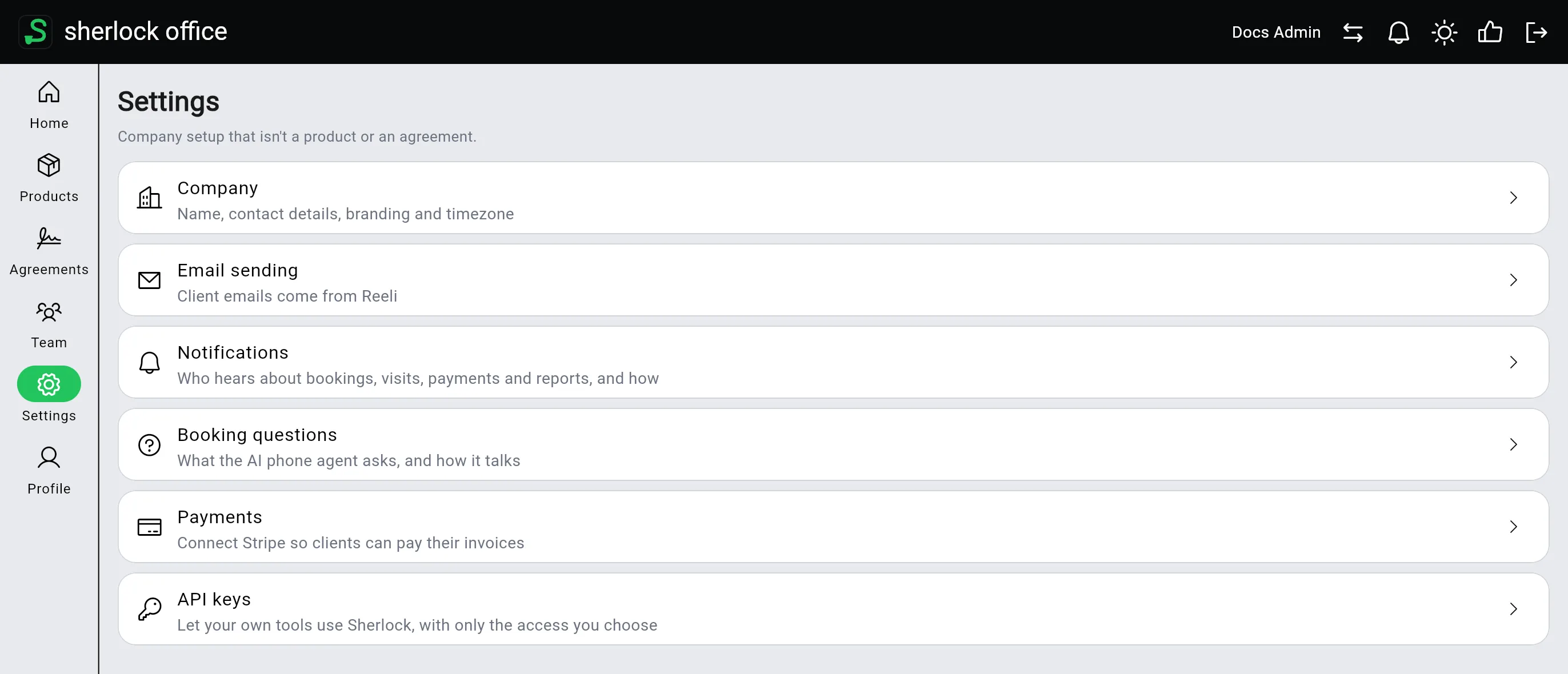
-
Tap Create key. If your company has no keys yet, the button is in the middle of the page.

-
Under Name, type the tool that will use the key, like Zapier. The name is only for you, so you can tell your keys apart later.
-
Under What it can do, tap each thing the tool needs. Selected permissions turn green. Choose only what the tool needs: you can always create another key later.
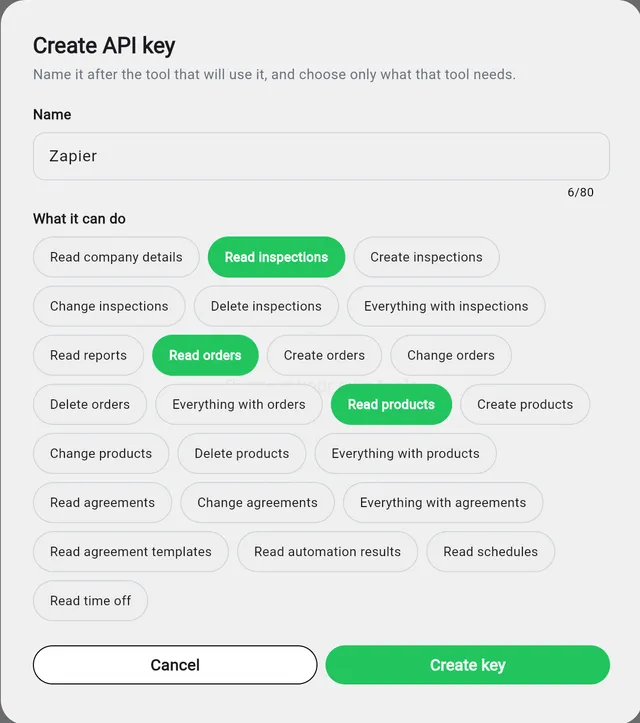
-
Tap Create key.
-
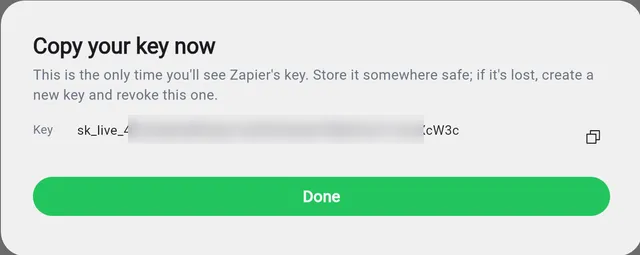
Copy the key with the copy button, and paste it into your tool or a password manager. Then tap Done.
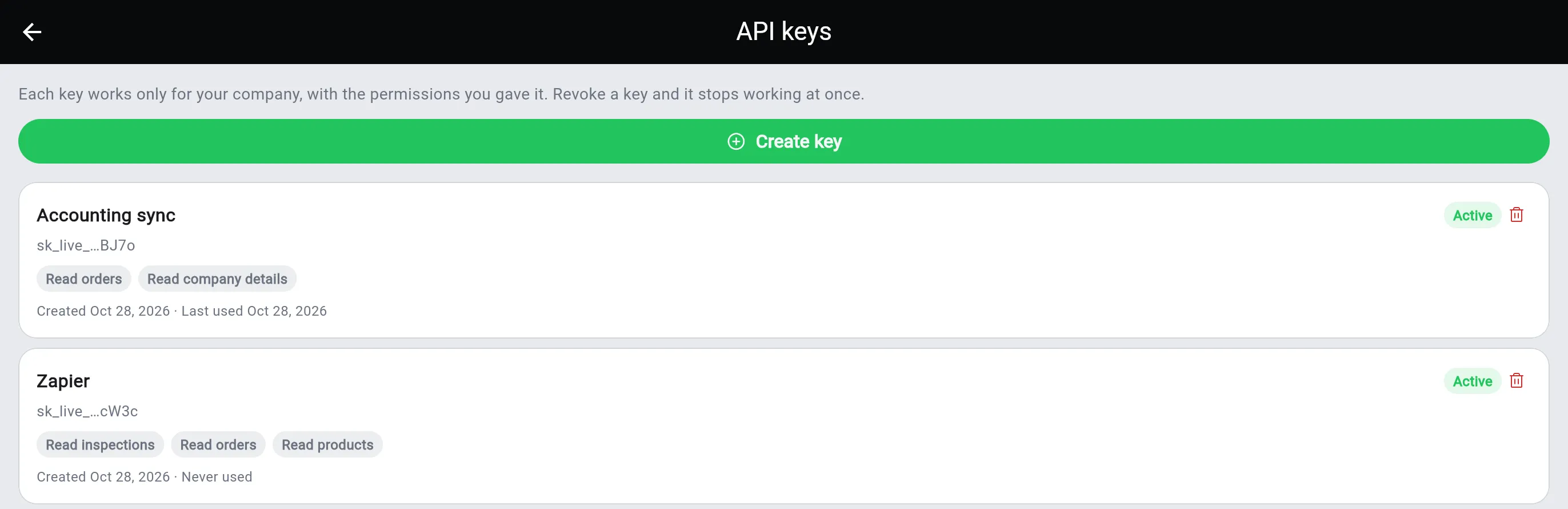
Your new key shows at the top of the list. Each key shows its name, the last four characters of the key, its permissions, when it was created and when it was last used.
What each permission allows
Section titled “What each permission allows”| Permission | What the key can do |
|---|---|
| Read company details | See your company’s details |
| Read inspections | See inspections |
| Create inspections | Add new inspections |
| Change inspections | Edit inspections |
| Delete inspections | Delete inspections |
| Everything with inspections | All of the above for inspections |
| Read reports | See inspection reports |
| Read orders | See orders |
| Create orders | Add new orders |
| Change orders | Edit orders |
| Delete orders | Delete orders |
| Everything with orders | All of the above for orders |
| Read products, Create products, Change products, Delete products, Everything with products | The same, for the products you sell |
| Read agreements, Change agreements, Everything with agreements | See or edit client agreements |
| Read agreement templates | See your agreement templates |
| Read automation results | See what sherlock’s automations produced |
| Read schedules | See your team’s working hours |
| Read time off | See your team’s time off |
“Everything with” also covers anything sherlock adds for that thing later, like a new way to change an order. Pick it only for a tool you trust with all of it.